Connector Quick Start
Start Connector
Unpack the distribution and run the start script located in the installation bin directory.
LINUX
./connector
WINDOWS
./connector.bat
Login to Connector
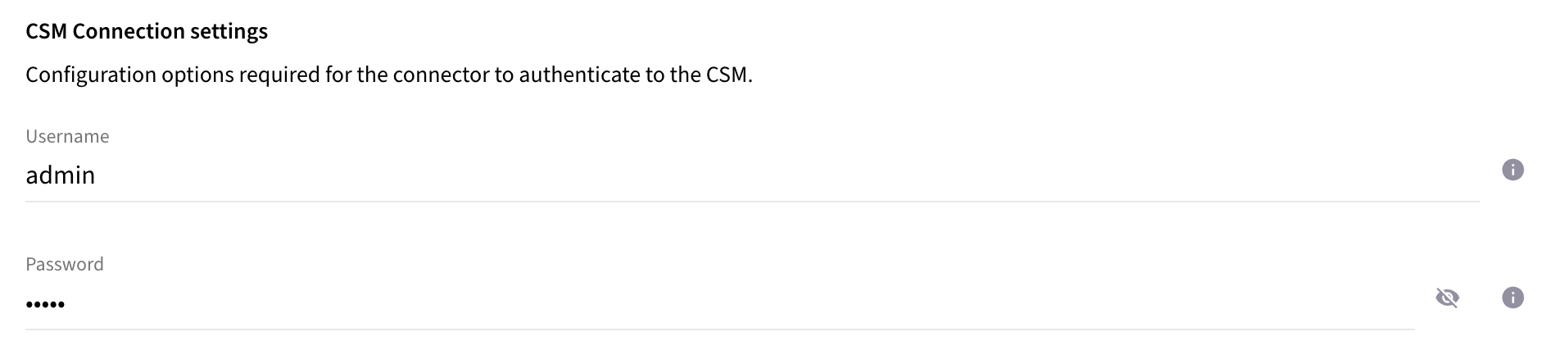
Once the Connector has started, navigate to the Admin UI and login with the default username and password, admin/admin:






Upload License
-
Contact Raytion and obtain a license for your connector
-
Login to the Admin UI
-
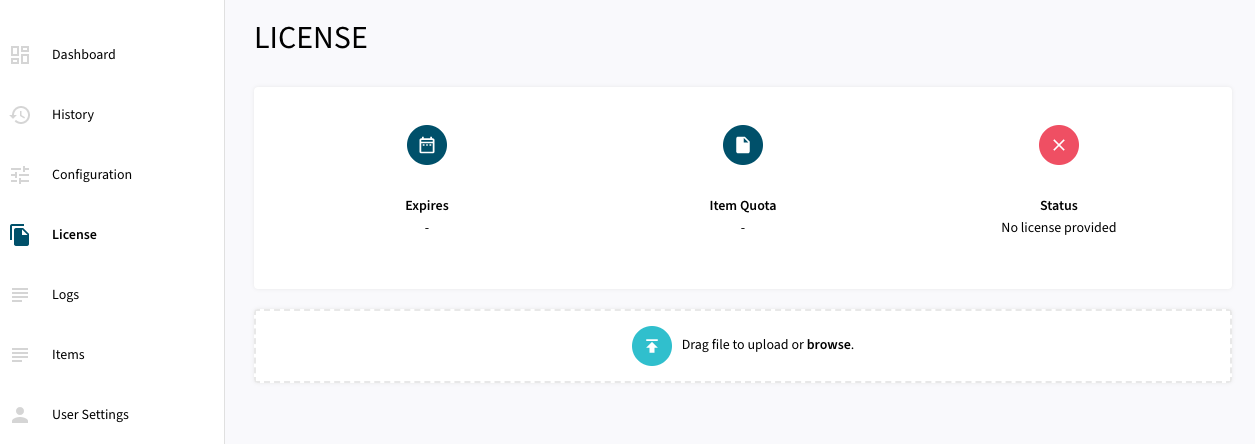
Select License in the menu:
-
Upload the license file by browsing for the file or simply dragging a dropping the license onto the license page
-
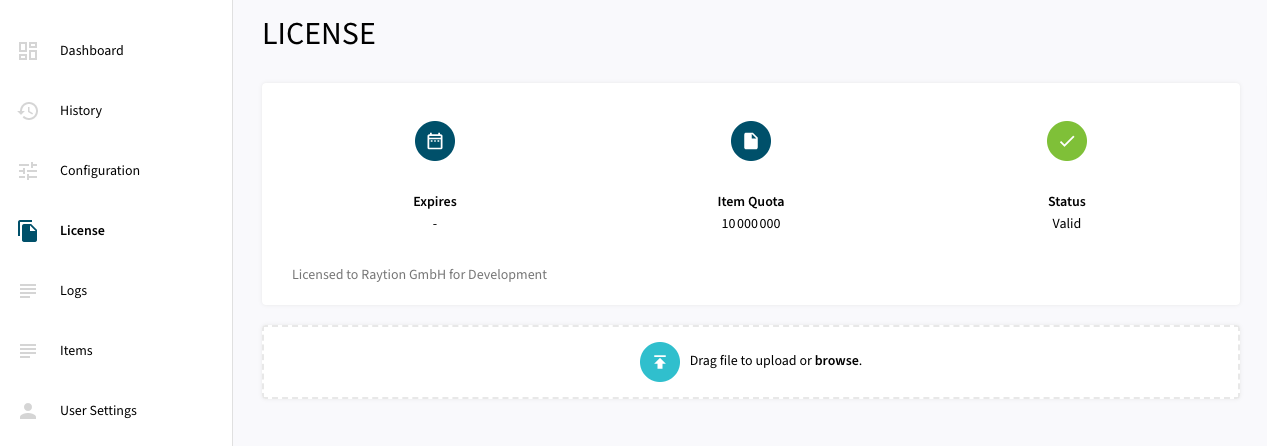
The Status of the license will be displayed as valid, and the expiration and item quota will also be displayed:
Synchronizing Content and Principal Information
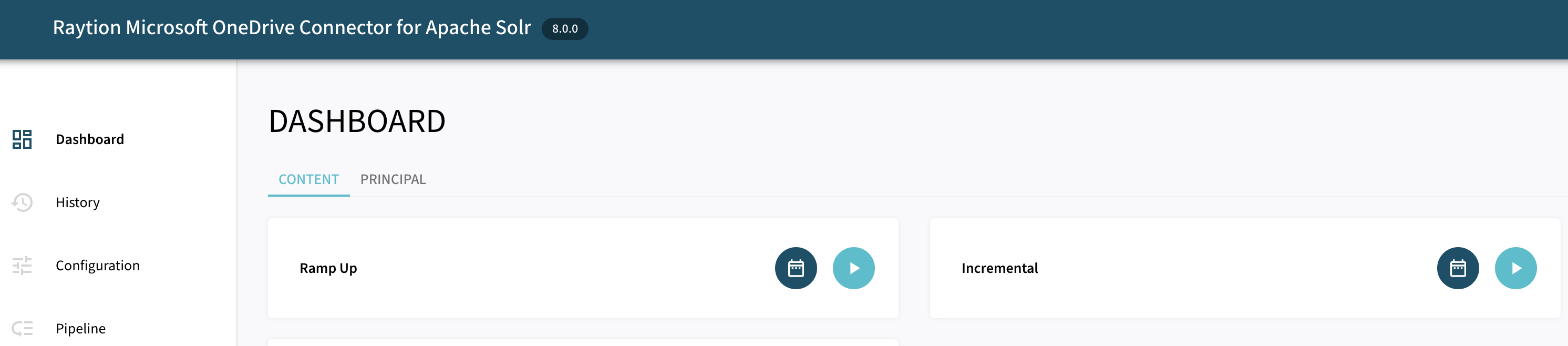
Once, the connector is configured and license uploaded, you can start synchronize content and principal information using the traversal feature in the dashboard.
Content Traversal
-
Ramp Up will process all items to Apache Solr.
-
Incremental will process only changed items since last traversal run including deletions.
Principal Traversal
-
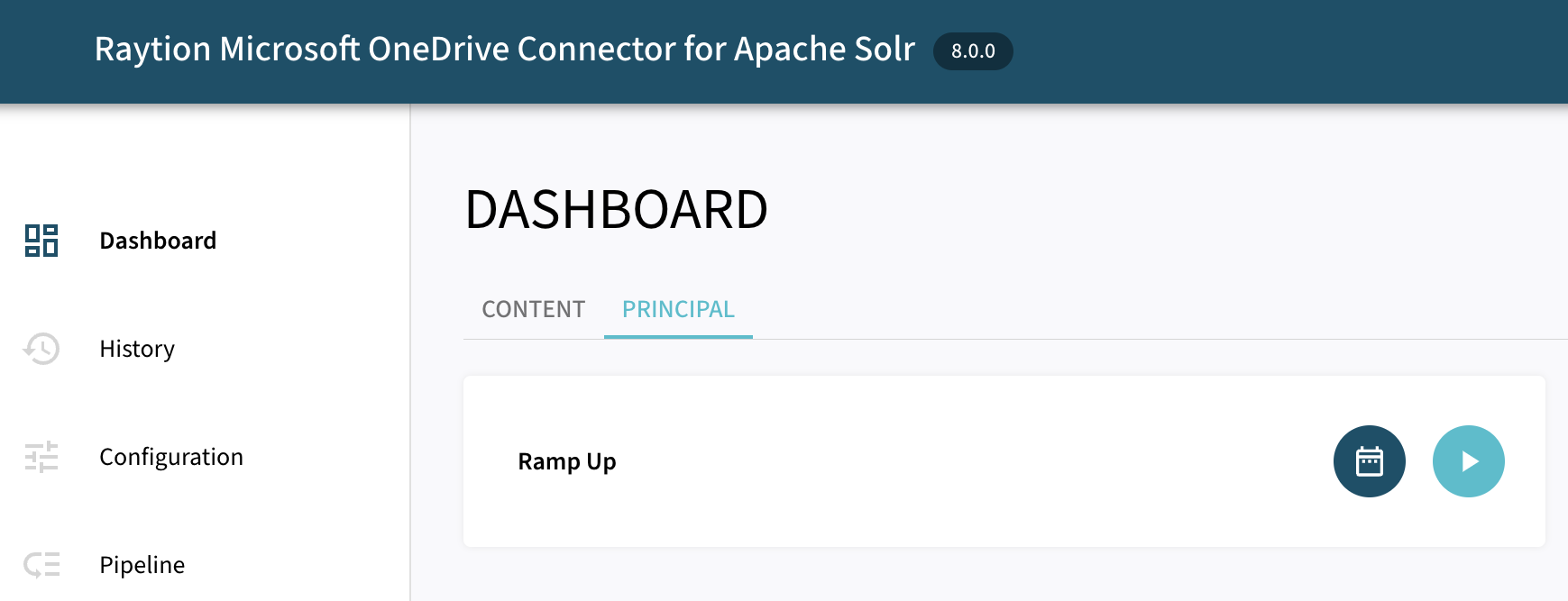
Ramp Up will process all security information to Raytion Custom Security Manager.
Content Change Processing
Enable the Content Change Processing to automatically cascade changes from Microsoft OneDrive to Apache Solr. Once, enabled the connector polls the source system in a background task to detect changes and newly added items.

Following changes in OneDrive can be automatically detected by the connector:
| Event Type | Description | Supported ? |
|---|---|---|
New Drive Item |
Newly added files in any personal drives |
✔ |
New Folder |
Newly added folders in any personal drives |
✔ |
Modification of Drive Item |
Modification done directly on files including modification of metadata, content and sharing permissions. |
✔ |
Modification of Folder |
Modification done on folder-level including modification of metadata, content and sharing permissions. |
✖ |
Move Drive Item |
Moved files within the personal drive. |
✖ |
Move Folder |
Moved folders within the personal drive. |
✖ |
Delete Drive Item |
Deleted file in the personal drive. |
✖ |
Delete Folder |
Deleted folder in the personal drive. |
✖ |