Microsoft OneDrive
Quick Start
Configure Azure App
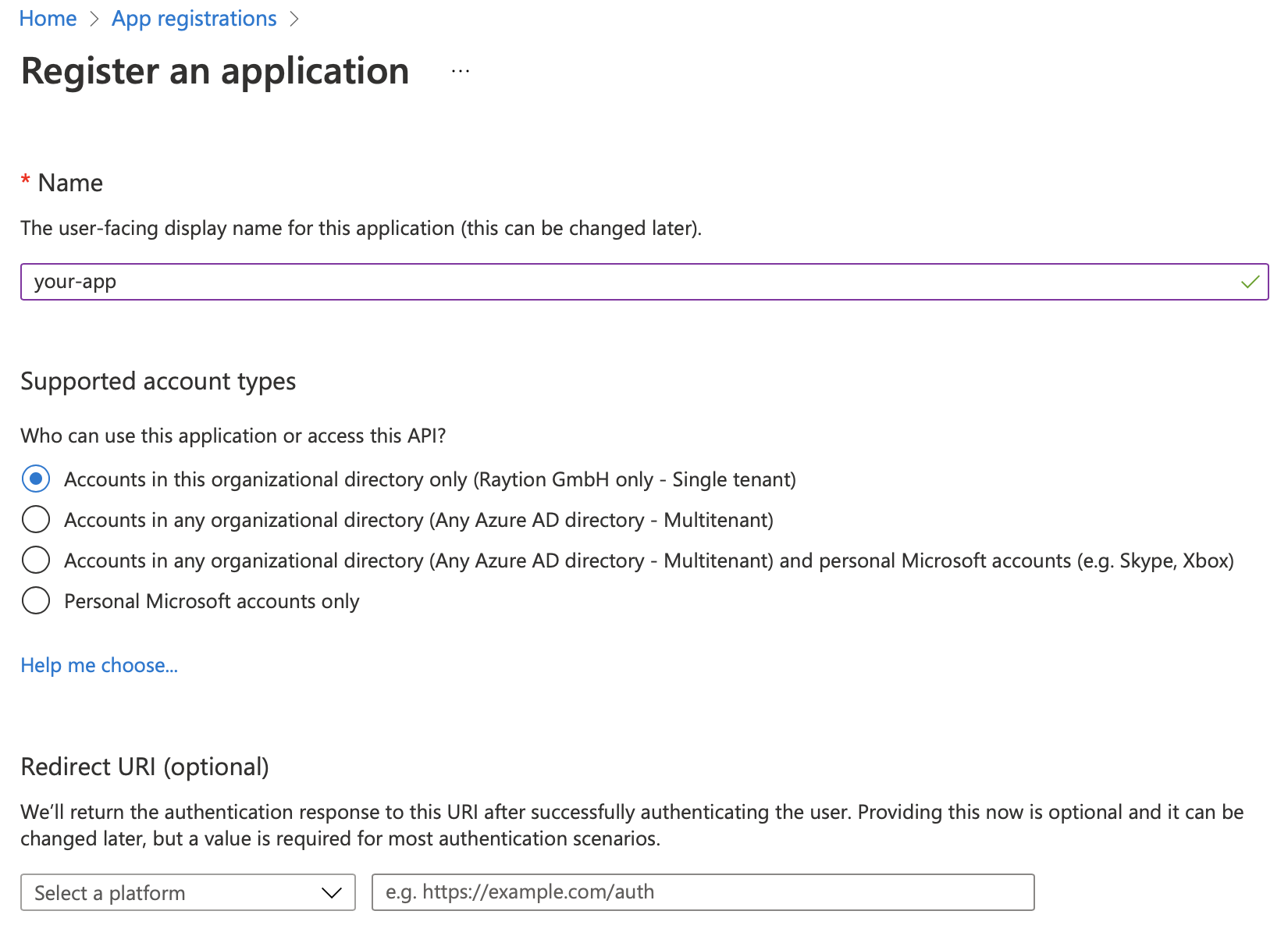
Go to Microsoft Azure Portal and navigate to App registrations.
Register a new app with the option New registration.


Type the name and select the option Accounts in this organizational directory only and submit the registration with register.
Omit the Redirect URI for your app.
Create Client Secret
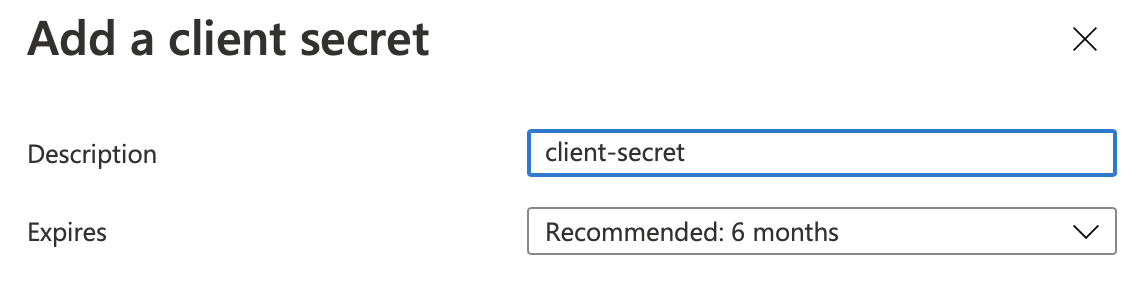
Add Client Secret under Certificates & secrets → Client secrets.

Submit your new client secret with the option New client secret.
Define API Permissions
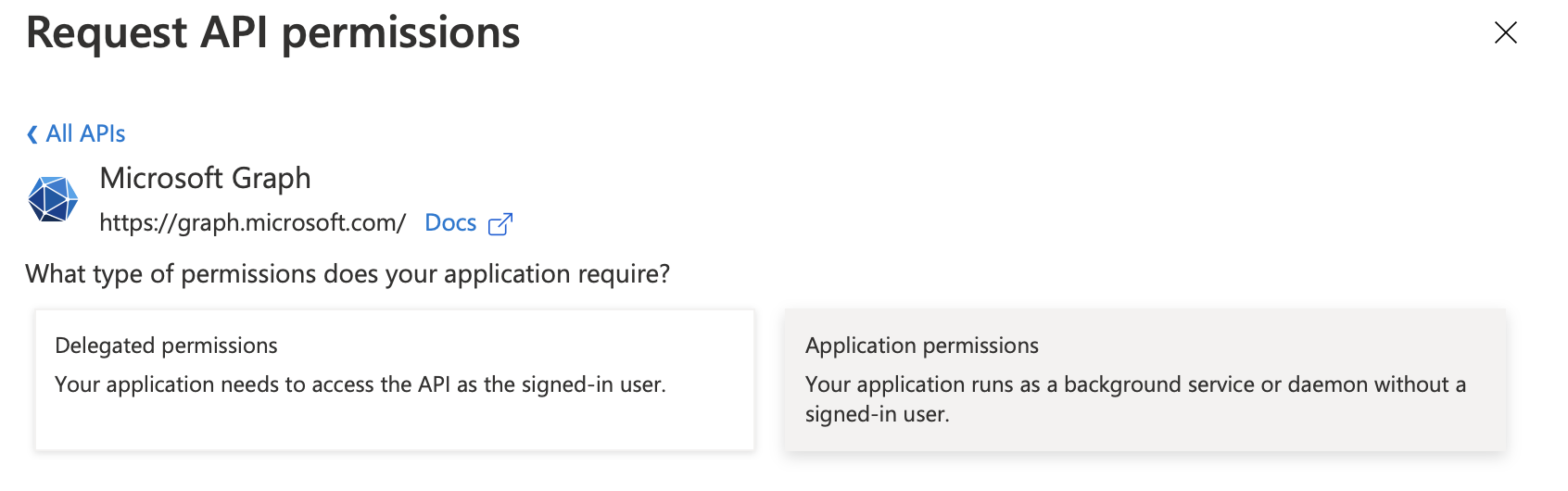
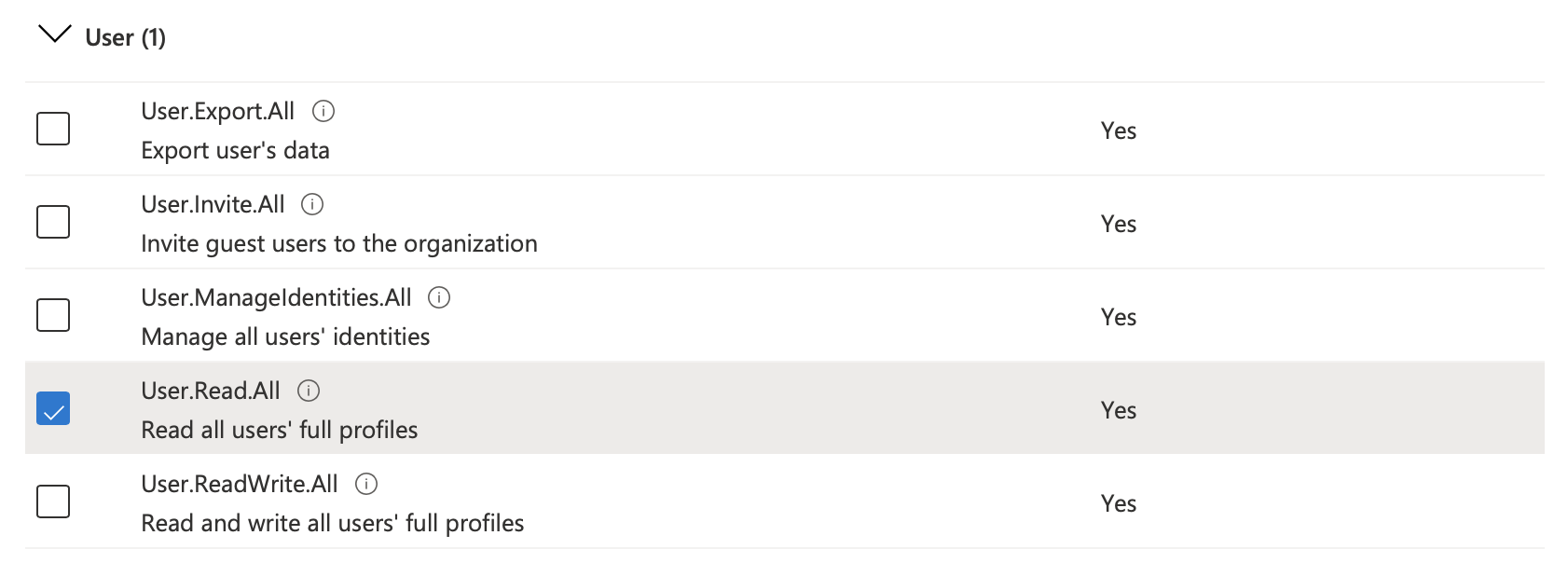
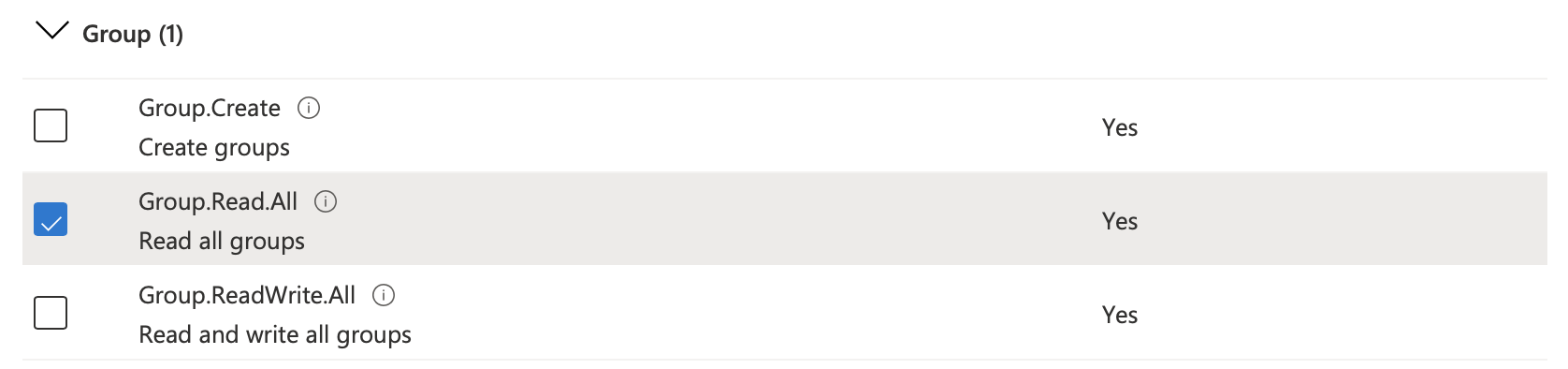
The connector requires access to the Microsoft Graph OneDrive API for synchronizing content items and to Users/Groups API for synchronizing principal information.
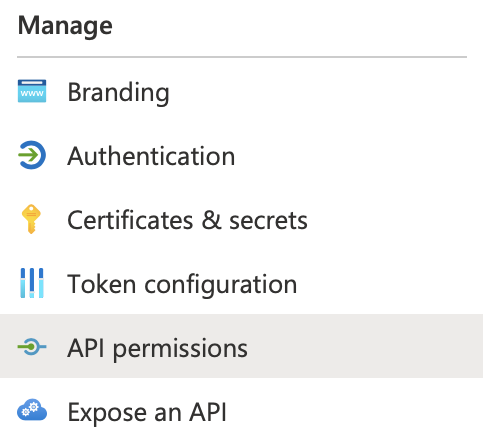
To assign the required permission to your app, navigate to API permissions inside your app menu.
With the option Add a permission, you can assign new permissions to your app.

Register all permissions as Microsoft Graph API Application permission.