Troubleshooting / FAQ
Performance of the Source System Part of the Connector
Rate Limiting, Throttling and Requests per Second
The connector is subject to the rate limits of the Microsoft APIs. Clients that use the resources of the Microsoft servers too intensively are stopped by the API for some time by corresponding HTTP responses.
To preempt throttling, the connector leverages signals from the Teams servers to significantly reduce the number of accesses per second. This proactive measure aims to avoid a complete halt of the connector whenever possible. The connector actively monitors signals from the Teams servers, allowing it to adjust the access rate dynamically. This approach is crucial for preventing throttling and ensuring the continuous operation of the connector. In order to mitigate the risk of throttling, the connector takes a proactive stance by substantially decreasing the access rate based on the received signals. This strategy minimizes the likelihood of hitting rate limits and maintains uninterrupted functionality.
The pivotal configuration option "Rate Limit Requests Per Second" plays a vital role in accommodating tenant-specific rate limits. During installation, it is essential to customize this setting to align with the unique rate limits imposed by the tenant. Recognizing the variability in rate limits across tenants, it is necessary to adapt the value of the "Rate Limit Requests Per Second" configuration option during installation. This ensures that the connector is configured to match the specific rate limits set by the tenant.
Export list of Teams using the Microsoft Teams admin center
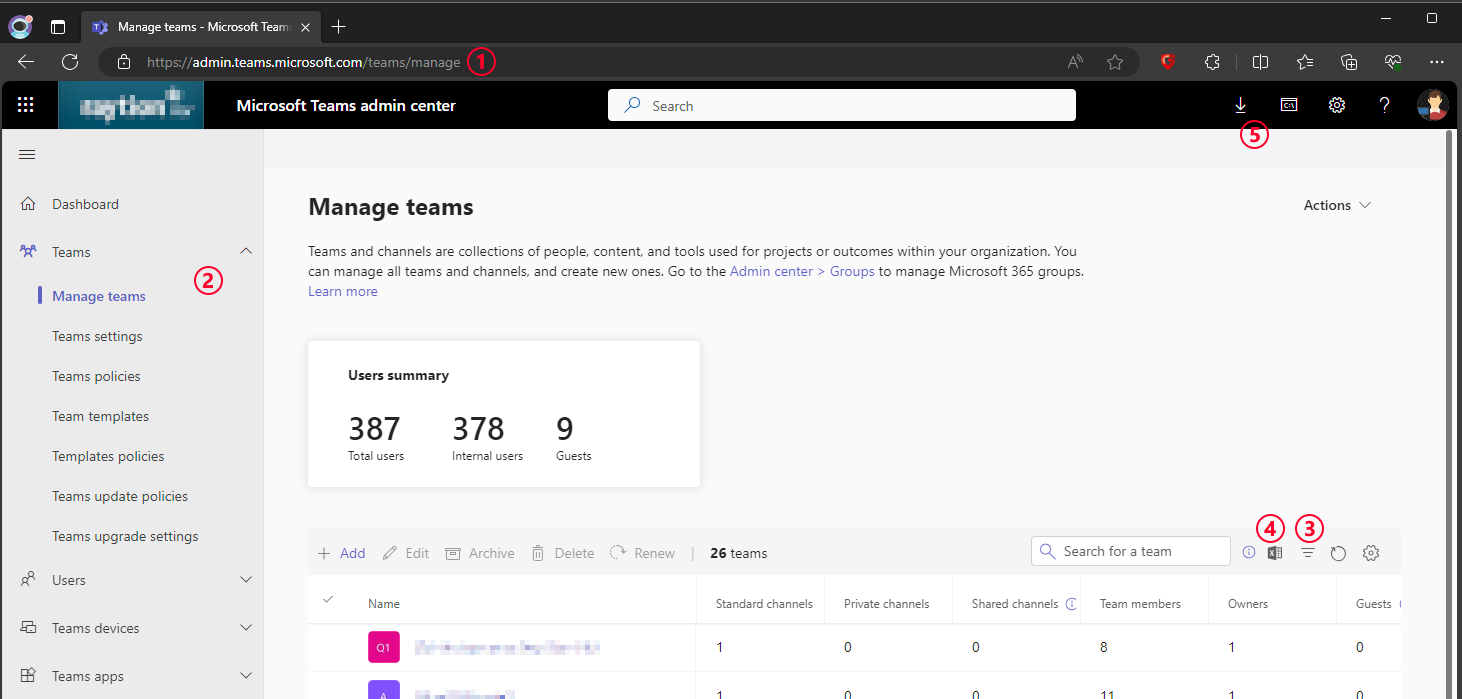
Exporting a filtered list of teams using the Microsoft Teams admin center involves several steps:
-
Open the Microsoft Teams admin center. You will need appropriate administrative credentials to access this portal.
-
Once logged in, open section "Teams" in the sidebar and click on "Manage Teams". This section provides an overview of all the Teams within your organization.
-
Depending on your requirements, you might want to filter the list to export specific teams. Use the filtering options available to narrow down the list to your desired criteria.
-
Click on the "Excel Export" button. This action queues the export in the Teams admin center.
-
Once the download is available, click on the download button located in the toolbar at the top right of the screen. Choose a location for the exported file and save it there.
-
Verify the exported data to ensure it meets your expectations.
| The exported data must contain a "Groups Id" column. This column contains the IDs of the exported teams and is required by the Connector if not using automatic team discovery. |
Target System: Apache Solr
Schema Handling
Before each content traversal the Apache Solr connector will fetch the schema for the collection to index documents into. Only metadata defined in the schema, will be indexed for each document. The connector considers explicit and dynamic schema fields.
The following field type classes will result in a special preprocessing:
| Class | Preprocessing |
|---|---|
|
Metadata field values which match a schema field of this type are formatted to ISO-8601 standard with second precision. |
| Schemaless mode is not supported! |
|
In case all extracted metadata should be indexed, the following dynamic field definition can be added to the schema: This way all not explicitly defined fields will be interpreted as text fields. |
Special Metadata
Between connectors a defined set of metadata is streamlined. These standard metadata will take precedence before metadata extracted from the source system. In case a field name extracted from the source system clashes with the name of a standard metadata field, only the standard metadata field is indexed.
| Standard Metadata Field | Description |
|---|---|
title |
The (interpreted) title of the document. |
sourceName |
The name of the source system. |
sourceUrl |
The URL pointing to the source system. |
sourceType |
The source system type. |
itemType |
The type of the item / document. |
clickUrl |
The clickable URL referencing the document. |
lastModifiedDate |
The last modification date. |
createdDate |
The creation date. |
previewUrl |
A URL which points to a preview of the document. |
mimeType |
The mime type of the document. |
authorId |
The ID of the author. |
authorName |
The display name of the author. |
fileExtension |
The file extension. |
fileType |
The pretty name of the file type. |
contributorIds |
A list of contributor IDs. |
contributorNames |
A list of contributor names. |
breadcrumbNames |
A list of names referencing items in the hierarchy above the current document. |
breadcrumbUrls |
A list of URLs referencing items in the hierarchy above the current document. |
languages |
A list of languages. |
keywords |
A list of keywords. |
content |
The document’s content as part of the metadata. |
docAllowAcl |
The allow document ACL. |
docDenyAcl |
The deny document ACL. |
Scheduling Commits
Commits to the index will not be triggered by the connector. In order to make data searchable, either commit manually or schedule automatic commits. For further information see the Official Apache Solr Documentation.