Box
Quick Start
Setup Box App
In order to be able to access the Box Content API, the connector must use OAuth 2.0 for authentication. For that reason, the connector must first be registered in your Box Enterprise. To do so, go to the following address and login with an admin account:
-
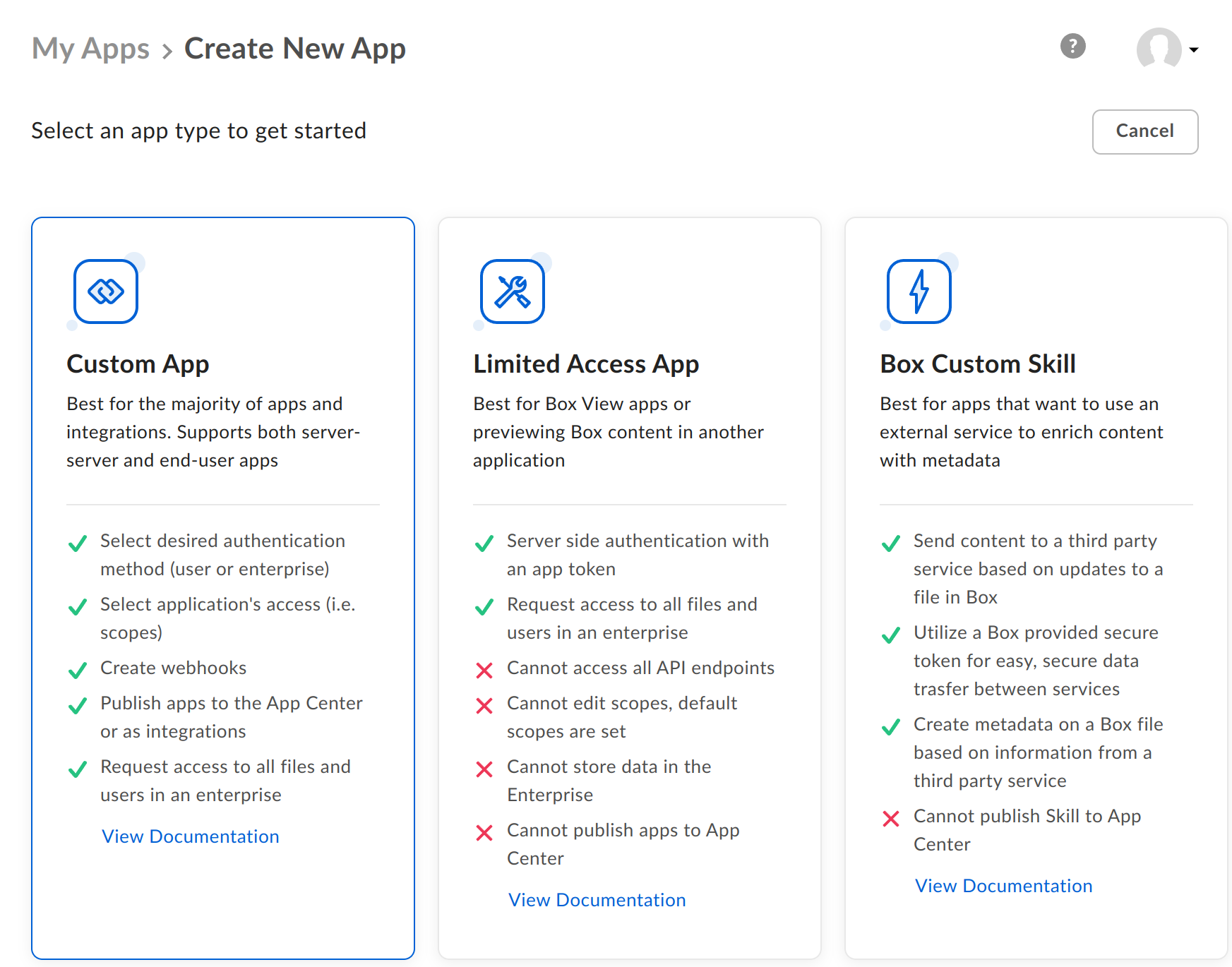
Create a "Custom App" by clicking on it.
-
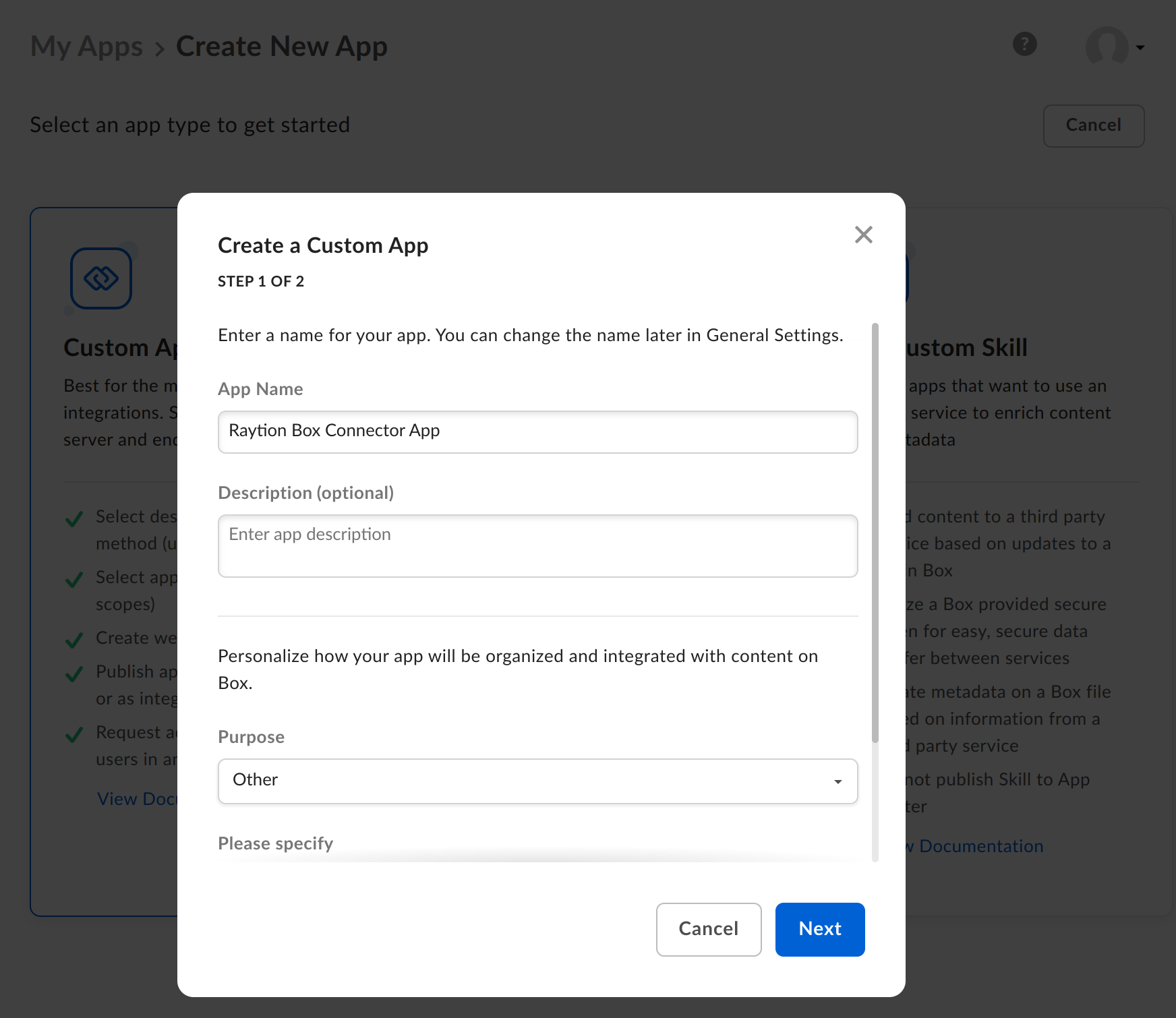
Determine a fitting App Name, the entries for Purpose are not of technical relevance. Then click "Next"
-
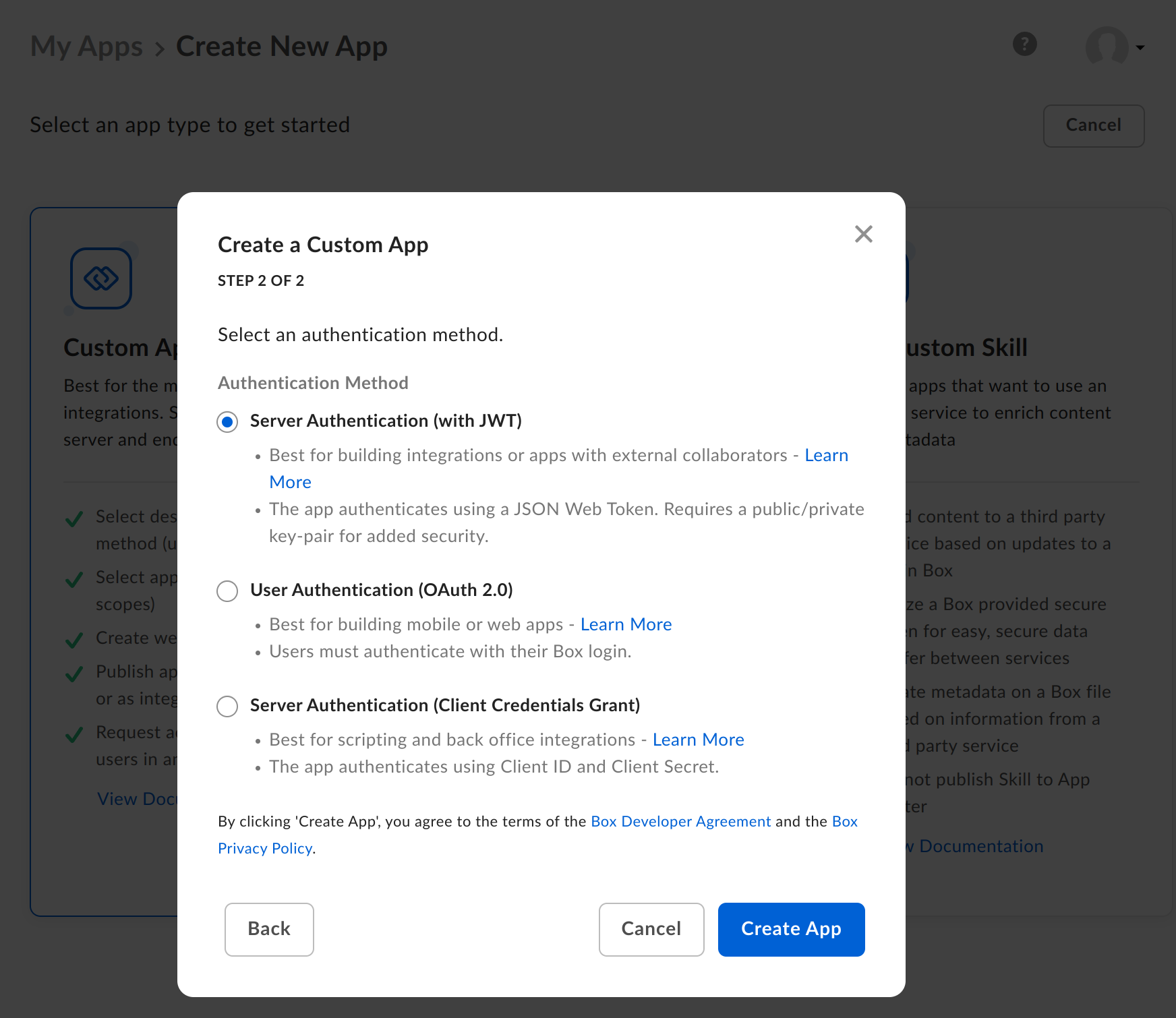
Choose "Server Authentication (with JWT)" as the authentication method. Then click "Create App"
-
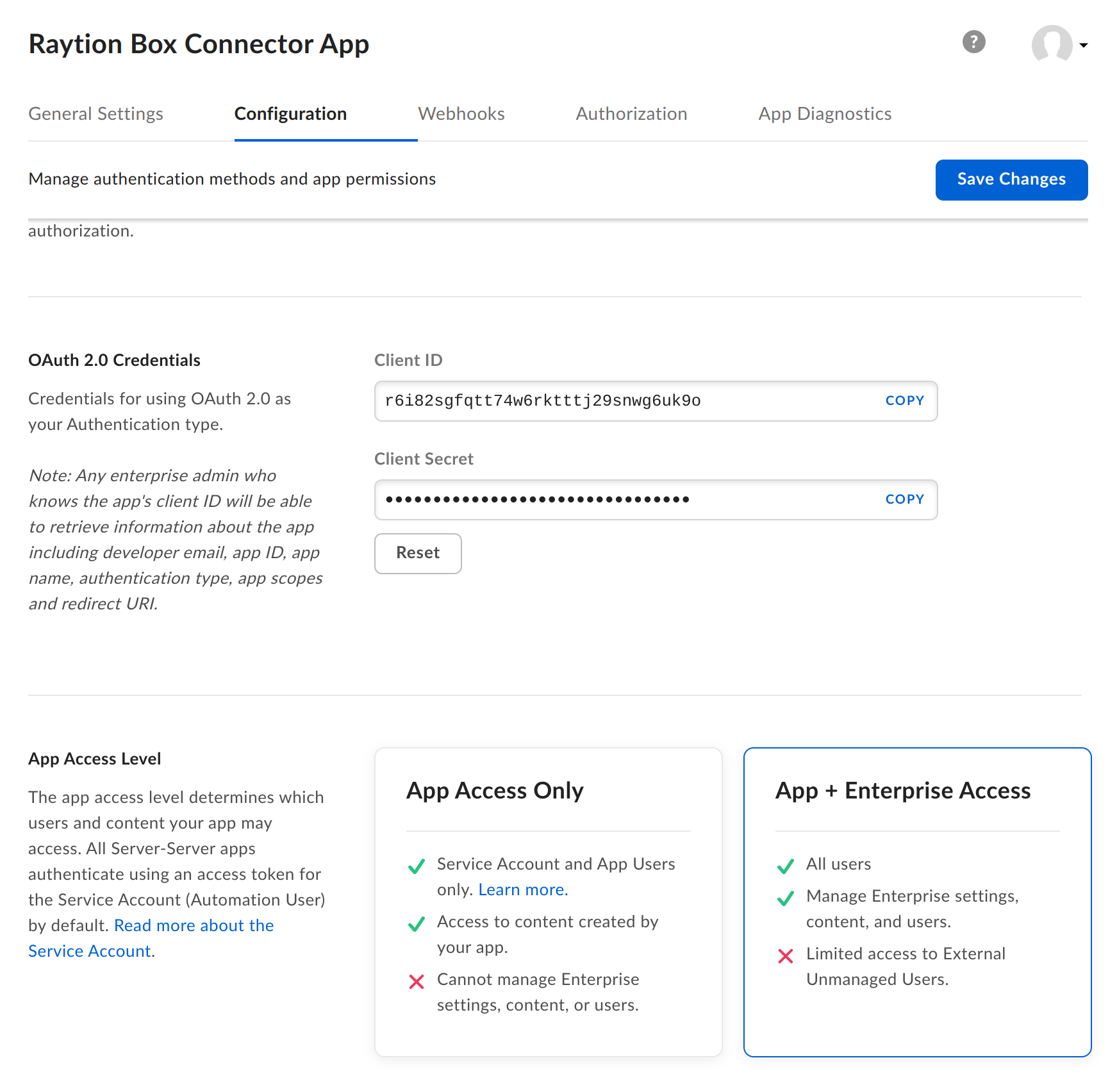
Switch the App Access Level to "App + Enterprise Access"
-
The Connector needs the "Write all files and folder stored in Box" privilege to index file content (This is selected by default).
-
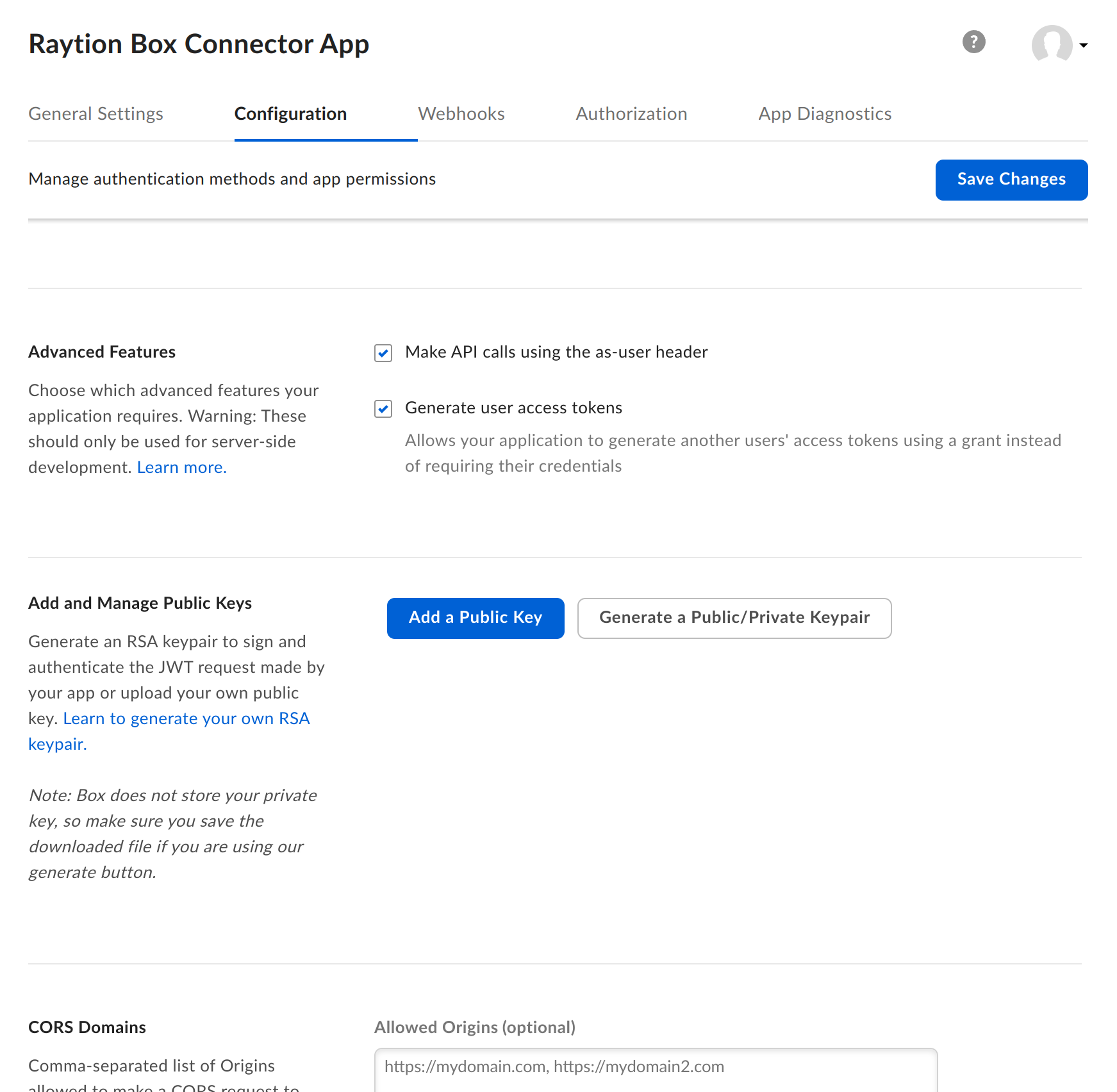
Further down, enable the Advanced Features "Make API calls using the as-user header" and "Generate user access token". Also provide or generate a pair of public/private keys. This requires the user to have 2FA enabled (See Box support).
-
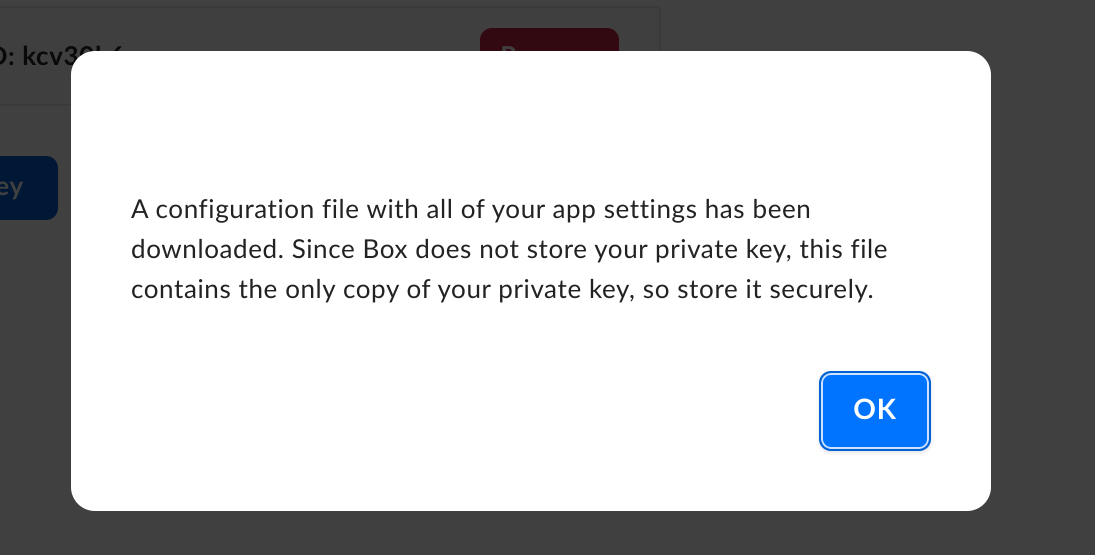
Clicking on "Generate a Public/Private Keypair" will trigger a file download with the JWT. This file can not be recovered, but you can generate a new one.
-
You will need this JSON file and the eMail address of the admin account to configure the Raytion Box Connector.
-
Click on "Save Changes"
-
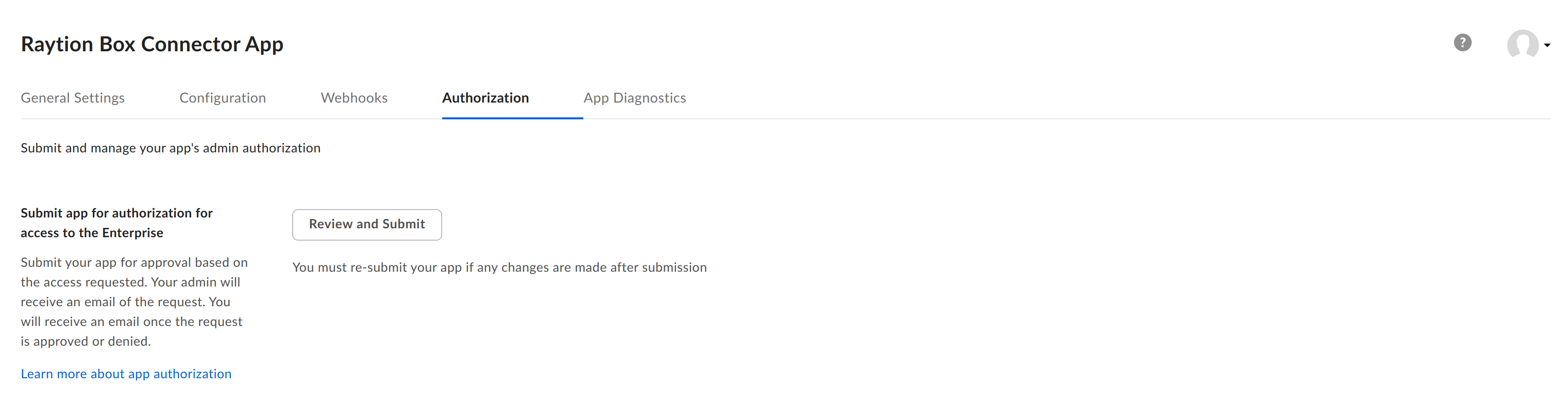
Navigate to "Authorization"
-
Click on "Review and Submit"
-
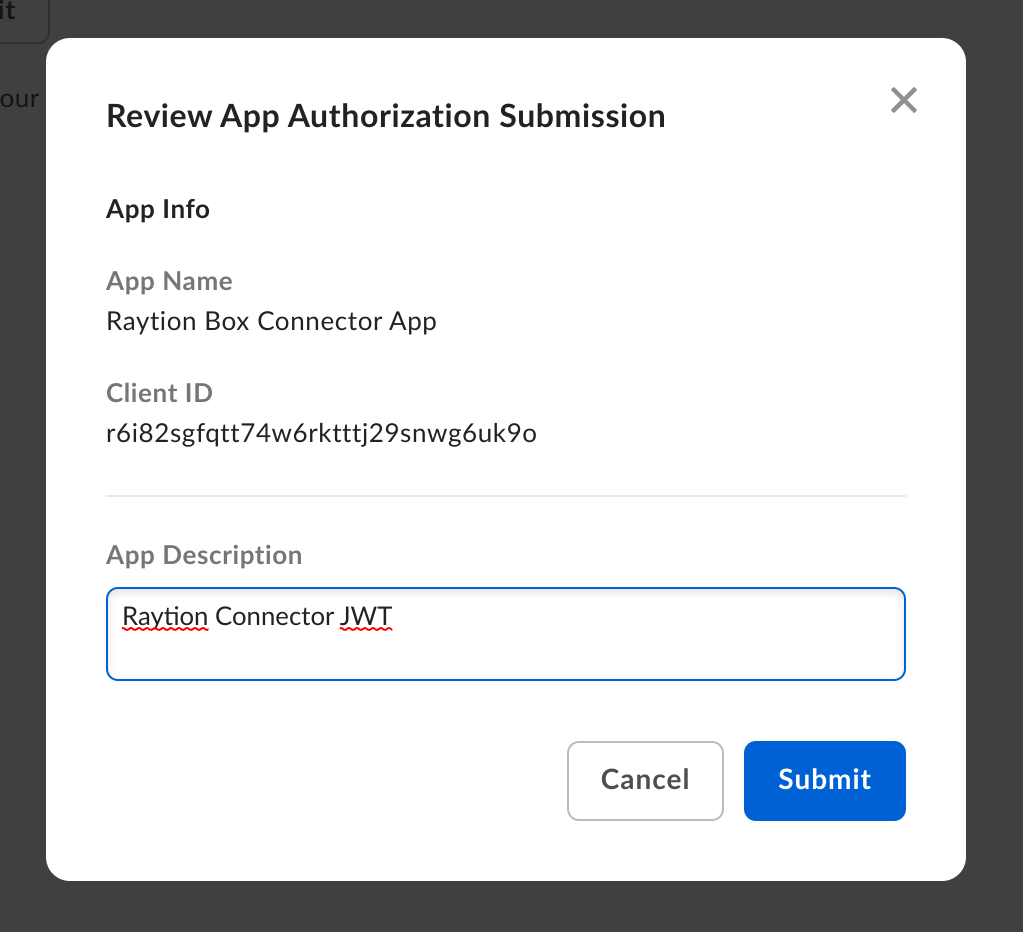
Fill the "App Description" field and click "Submit"
-
Your review is now pending approval from a tenant administrator.
-
As the admin account, navigate to the Box Admin UI https://app.box.com/master
-
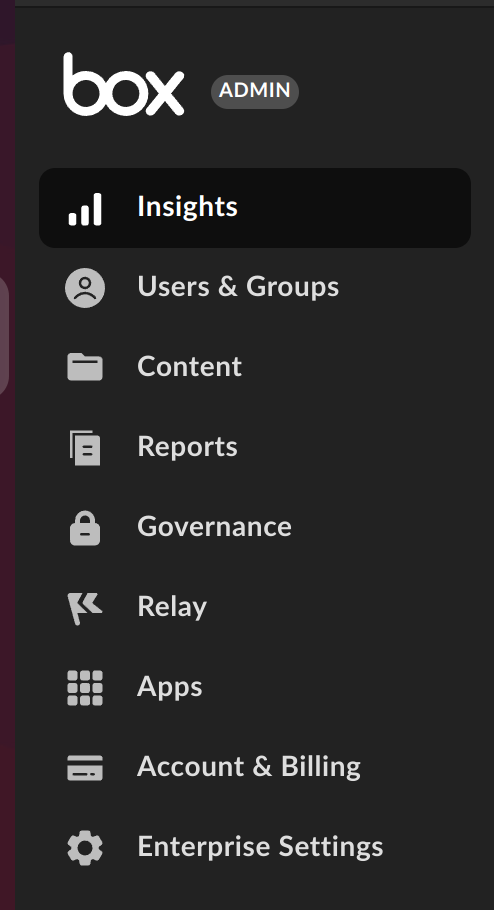
On the left, click on "Apps"
-
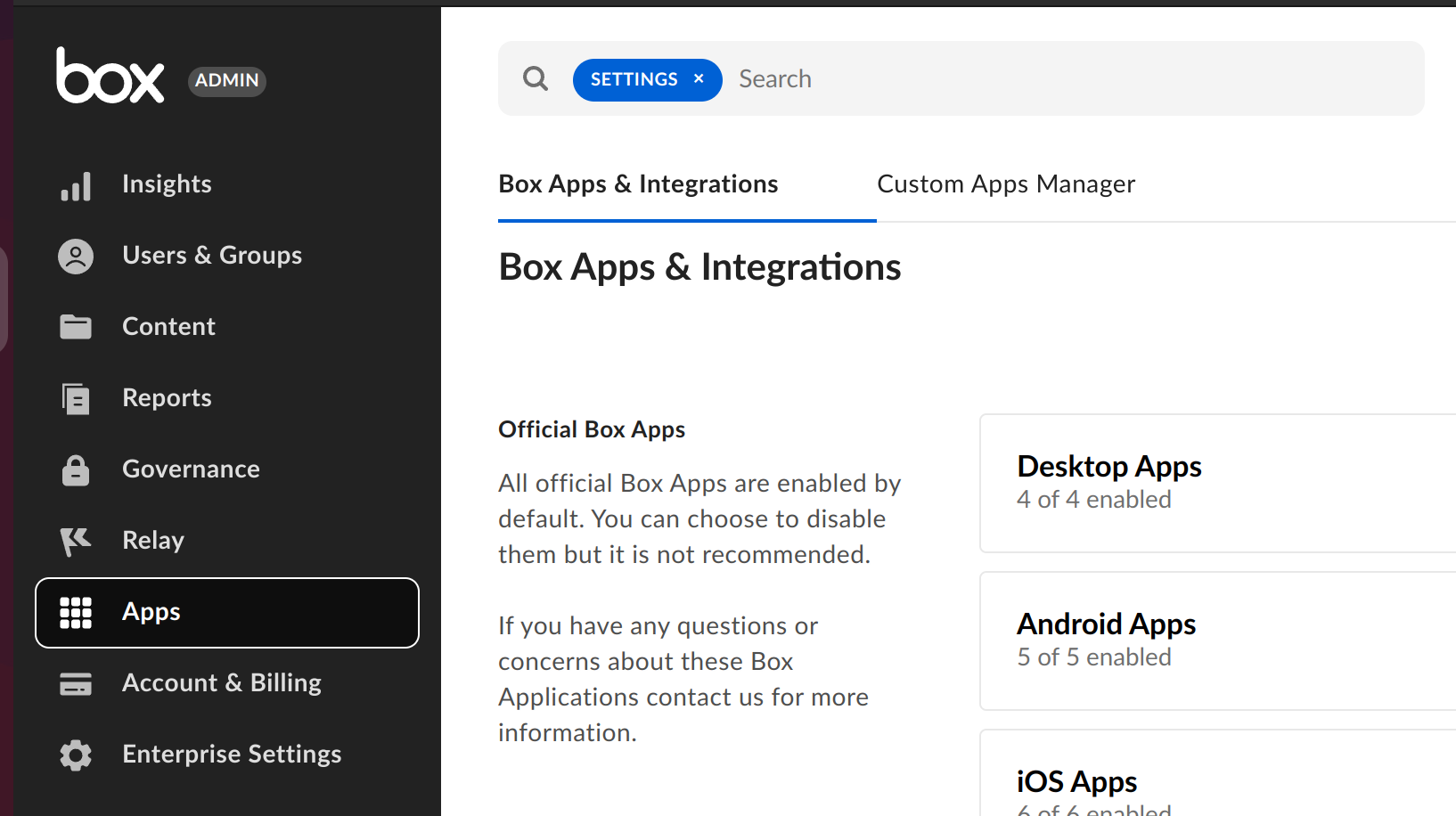
Click on the "Custom Apps Manager" tab
-
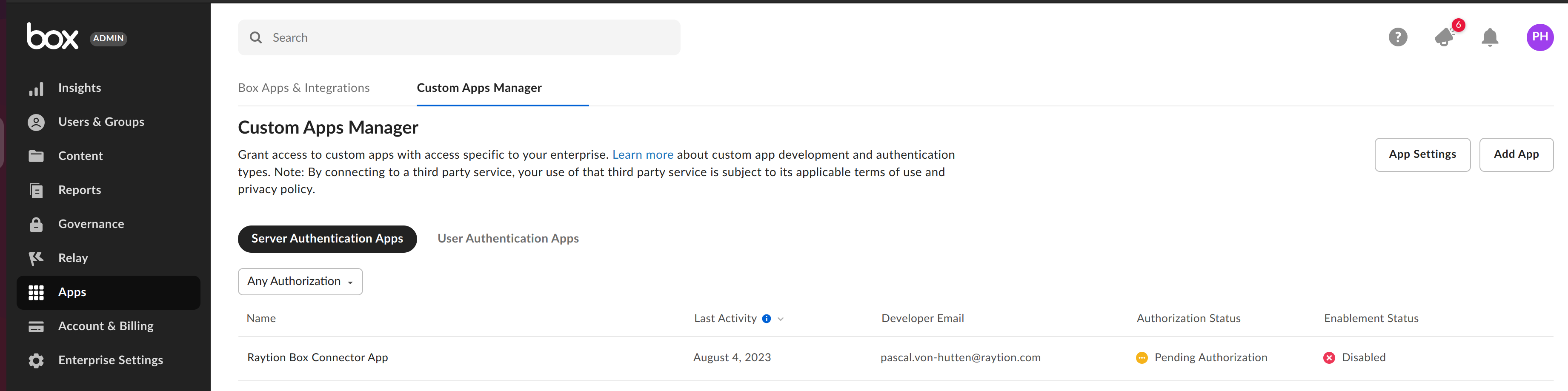
You should see your approval request as "Pending Authorization"
-
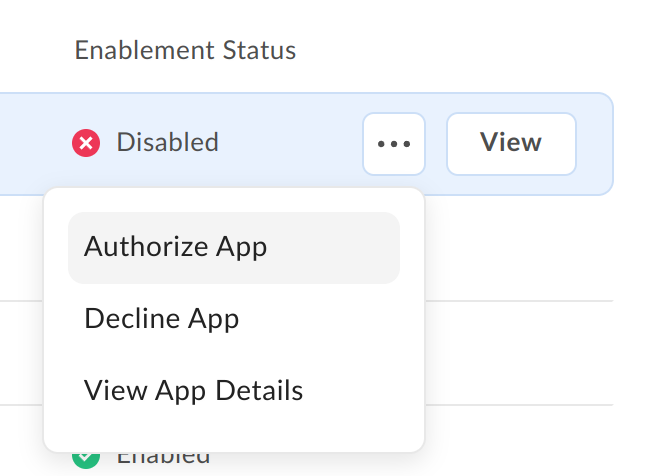
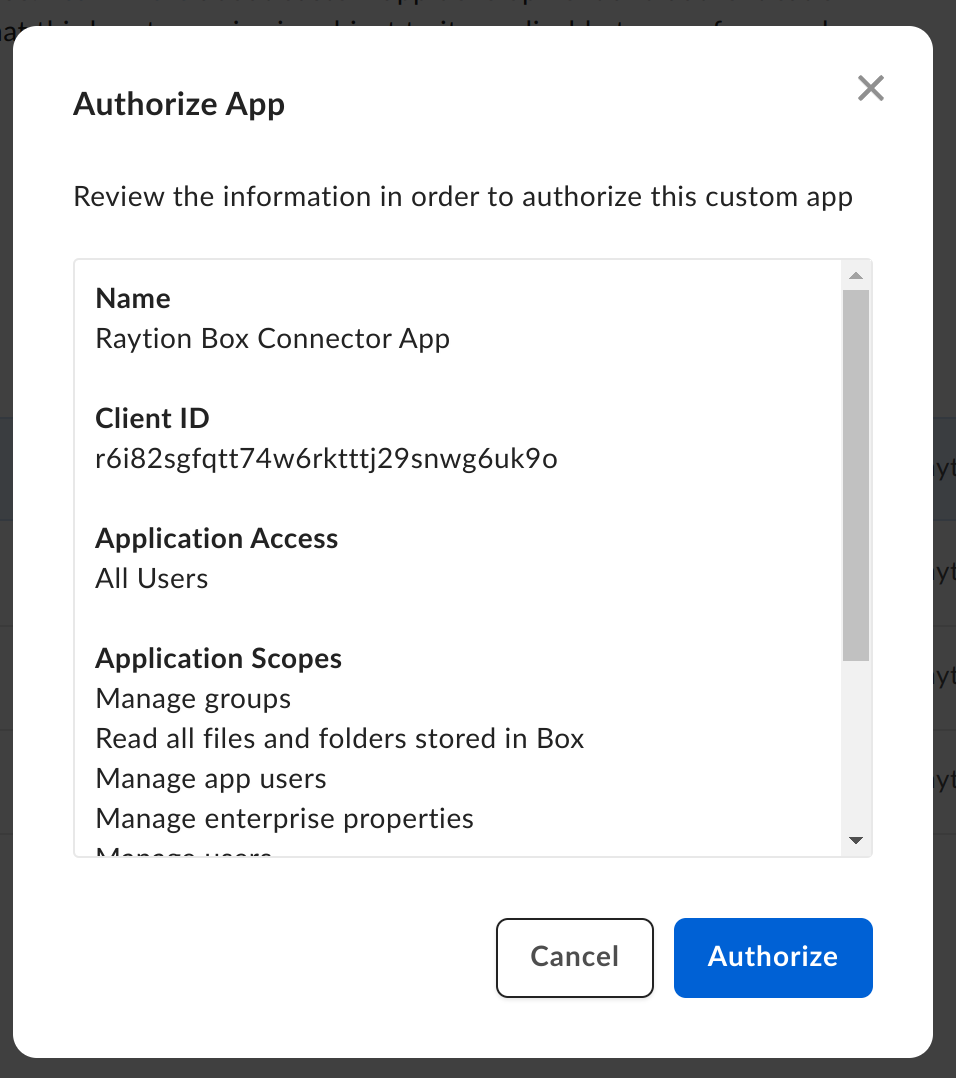
On the right end of the row, click on the ellipsis and then on "Authorize App"
-
Click on "Authorize"
-
Your app has now been approved.

-
This status is also visible from the app overview
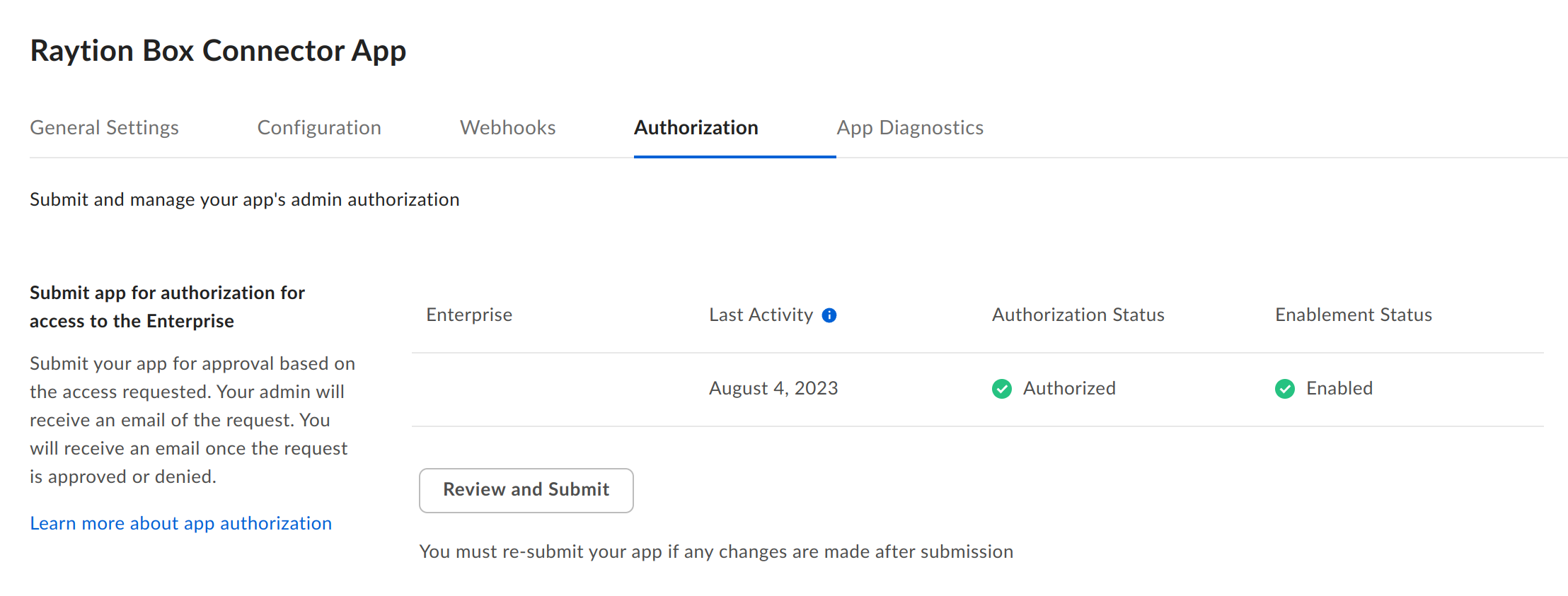
Box is now prepared to be indexed by the Raytion Enterprise Search Connector.